
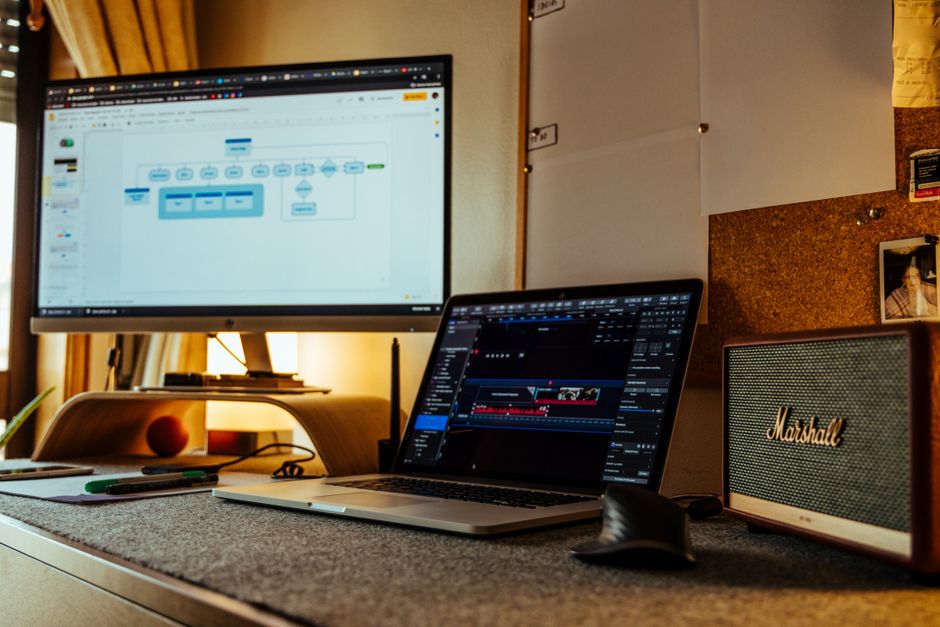
Your Home Office Is Your Business — Treat the Move That Way
If you work from home, your office is not just a room. It is where your income happens. A damaged monitor, a lost hard drive, or a week without internet after moving day is not just an inconvenience — it is a real professional and financial problem.
The good news: with the right plan, you can move a full home office in Knoxville and be back up and running the next morning. Here is exactly how.
---
Step 1: Inventory Everything Before You Pack a Single Cable
Before you touch anything in your office, make a complete inventory. This serves two purposes: it tells you what you have to pack carefully, and it gives you a record for insurance purposes if anything is damaged.
Your home office inventory should include:
- Every piece of hardware (computers, monitors, keyboards, mice, webcams, microphones, speakers, printers, scanners, external drives, docking stations, routers, switches)
- Serial numbers and model numbers for high-value equipment
- Software licenses and account credentials (stored securely — not in a moving box)
- All cables and peripherals
Take photos of your full desk setup from multiple angles. When you set up at the new home, you will thank yourself — especially for the cable routing behind your desk.
---
Step 2: Back Up Everything Before Moving Day
This is not optional. Moving day is not the time to discover a hard drive does not survive bumps.
Before the move:
- Back up your primary computer to an external drive AND a cloud service (iCloud, Google Drive, Backblaze, or similar)
- Back up external hard drives as well — anything that exists in only one place is a liability
- Store your backup drive in your personal bag or car during the move — not in the moving truck
If you have not backed up recently, a move is the forcing function to finally do it. Do it now.
---
Step 3: Pack Electronics Like a Professional
Electronics are the most expensive and most fragile items in any home office. Packing them wrong is how you arrive at your new Knoxville home with a cracked monitor or a fried laptop.
The Golden Rule: Original Packaging First
If you kept the original boxes for your monitors, desktop tower, or other gear, use them. The custom foam inserts are designed for that exact device and provide superior protection.
When You Do Not Have Original Packaging
Monitors:
- Remove the stand and pack it separately if possible
- Wrap the screen face with anti-static foam or soft moving blankets — never bubble wrap directly on a screen (static risk)
- Use a flat-screen TV box or a purpose-built monitor box with corner protection
- Pack monitors standing on edge, never face-down or flat
Desktop towers:
- If your tower has a large GPU or heavy add-in cards, consider removing them and packing separately — they can shift and damage the motherboard during transit
- Wrap in anti-static bubble wrap
- Pack snugly in a box with foam on all sides
Laptops:
- Laptops should travel in your car with you, in your bag — not in the moving truck
- Same goes for tablets and any device you absolutely cannot afford to have damaged
External hard drives:
- Extremely vulnerable to shock — wrap each one individually in bubble wrap
- Pack in a small, padded box with no room to shift
- Better yet: carry them personally
Cables and accessories:
- Coil cables loosely (never wrap tightly around anything)
- Use twist ties or velcro straps to keep sets together
- Label each set: "Monitor cables," "Standing desk power," "Router/switch"
- Pack all cables in clearly labeled bags inside one dedicated box
---
Step 4: Plan Your New Office Layout Before You Move
The worst home office scenario: movers put your desk in the room, you set everything up, and then you realize the only power outlet is on the opposite wall, or the cable drop for your ethernet is in the wrong corner.
Before moving day:
- Measure your new office space carefully
- Locate every power outlet and plan your surge protector/power strip placement
- Identify the cable entry points for internet service
- Sketch a rough layout — where the desk faces, where the secondary monitor goes, where you will run cables
Internet planning is critical for remote workers:
- Contact your new internet provider (Comcast/Xfinity or AT&T are the main options in most of Knoxville) at least 2 weeks before the move
- Schedule installation for the day before or the morning of your first workday after moving
- As a backup: know your mobile hotspot capability — if installation is delayed, you need a fallback
- Consider a travel router if you frequently work in transitional situations
---
Step 5: Label and Prioritize the Office Boxes
In a whole-home move, your office boxes need to be findable and unloaded with priority.
Use a color-coded label system:
- Assign one color of tape or sticker to all office boxes
- Write "HOME OFFICE — PRIORITY UNLOAD" on each box
- Tell your Buster's Box's Moving crew which boxes these are so they can place them first
Pack a "Day One Office" bag:
This is your most important packing decision for a remote worker. In a separate bag (not a moving box — something you carry with you), pack everything you need to be functional on day one:
- Laptop and charger
- Mouse and keyboard
- Headphones or headset
- Notepad and pen
- Phone and charger
- Any dongle or adapter you depend on
- Your external backup drive
With this bag, you can work from any surface in your new home while the rest is being unpacked. You are never fully offline.
---
Step 6: Manage Your Work Schedule Around the Move
Even the most perfectly executed move creates some downtime. Plan for it professionally.
Two weeks before:
- Notify clients or your employer that you have a move upcoming
- Front-load any deadlines that would otherwise fall on moving week
- Schedule no critical deliverables for moving day itself or the day after
The week of the move:
- Set an out-of-office reply or a brief heads-up message for clients explaining a brief delay in response time
- Block your calendar on moving day and the day after for setup and recovery
Day two at the new home:
- Prioritize getting the office functional before the rest of the house is settled
- For remote workers, the office comes before the living room, before the dining room — your workspace is your first priority
---
Standing Desks and Large Office Furniture
If your home office includes a standing desk, large L-shaped desk, or heavy shelving, these require the same planning as major furniture.
- Electric standing desks: Disconnect all cables before disassembly. Lower the desk to the lowest position for moving. Remove the desktop surface from the frame if possible — the frames are heavy and awkward but manageable; the desktop surface is the vulnerable part
- Large monitors or ultrawide setups: These are more difficult to transport safely. Use blankets, foam, and standing position in the truck
- Heavy shelving: Remove every item before movers touch the unit. Full shelves are both dangerous and can damage the shelving itself
Let the Buster's Box's Moving crew handle the heavy lifting. Your job is to have everything off the shelves and surfaces before they arrive.
---
Setting Up at the New Home: The Right Order
When you arrive, do not unpack randomly. Set up your office in this order:
1. Place the desk and chair in the planned position
2. Run power first — surge protector and power strips to all needed outlets
3. Set up internet — router plugged in, connection confirmed before anything else
4. Desktop or laptop on desk, powered up, confirmed working
5. Monitors connected and tested
6. Webcam, microphone, and peripherals connected and tested
7. Cable management — route and tidy cables so you are not working in chaos
Test a video call before you declare the office operational. That is the real test.
---
Let Buster's Box's Moving Handle Moving Day
Remote workers and freelancers in Knoxville trust Buster's Box's Moving because we handle the physical work efficiently so you can stay focused on your professional transition. We treat your equipment carefully, follow your instructions on priority boxes, and get you into your new home fast.
[Get a free estimate today](/#contact) — and be back at your desk the next morning.